
The 5 Steps to use Pocket AI

1. Set up the app and connect Pocket
Start by downloading the Pocket app and pairing your device.
This is where everything shows up after you record.
All your recordings, transcriptions, summaries, and action items are found here.
Once it’s connected, you’re ready to go.
2. Choose how you need to use it.
Pocket can switch between audio in the room and audio on a phone call.
For in person conversations like meetings, brainstorming sessions, or voice notes, place Pocket on a surface or hold it and use the default studio mics.
For phone calls, use MagSafe to attach Pocket to the back of your phone and flip the slider to call mode so it uses contact mics to capture the full call, no need to use speakphone.
Pocket comes with a free MagSafe mount, in case your phone or case doesn’t have one.
3. Start recording instantly
There is zero setup to begin a meeting. You just press the record button to start and press it again to stop
That’s it.
You will know you did it correctly because a small light will turn on and there will be a small vibration.
You don’t need to open the app or mess with any settings, it’s just one click and you are recording.
This process is fully offline so you do not need to be connected to the internet, your recording will be stored in the 64GB of memory until you reconnect to the cloud.
Just make sure to click a few seconds early to ensure you capture every word.
4. Record first, process later
Pocket is designed so you don’t have to think about notes during the conversation.
Just hit record and focus on what’s being said.
If you are connected to the cloud, a lot of the processing is happening automatically as the call progresses. But even offline, it will start synching automatically as soon as you reconnect with the internet
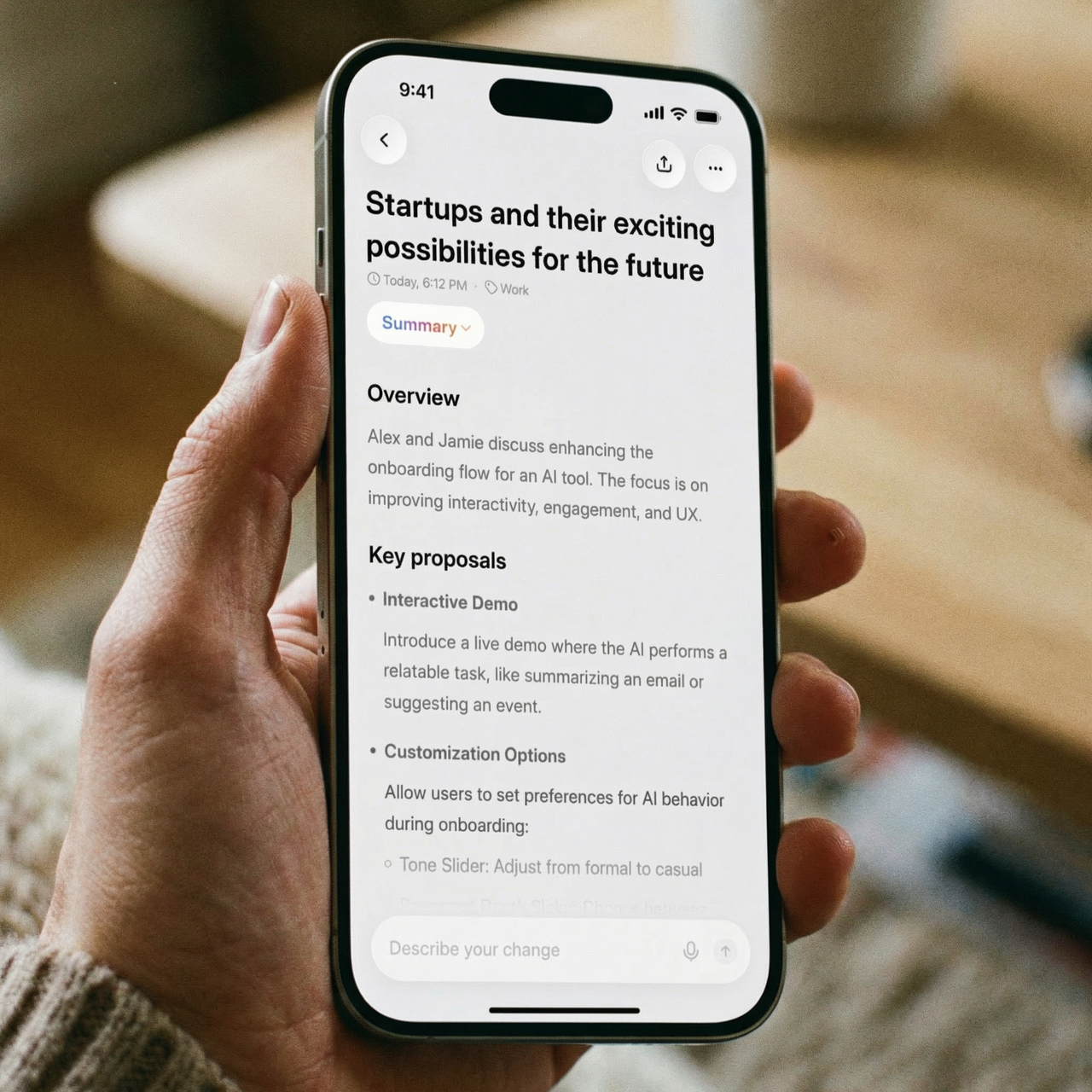
5. Open the app and get everything organized automatically
Once you open the app and your call is fully synched (which is often instant if you were already connected to the cloud), Pocket turns your recording into something you can actually use.
You’ll get:
A full transcription of the call
A clear summary of what was said
Action items showing what needs to happen next
A mind map that organizes the conversation
The easiest way to use this:
Read the summary to see everything that was agreed
Share the summary to avoid any need for follow up
Check the action items so you know what to do next,
Use the mind map if you want to brainstorm and expand on certain ideas.
Click here to save up to 45% on Pocket
Get Your Pocket
400,000+ Creators, Founders, and Thinkers use Pocket


Trusted by professionals at: